Radar
This guide will lead you though the basics of how to setup your radar while on patrol!
- Press
F5while in a patrol vehicle to open the radar remote!
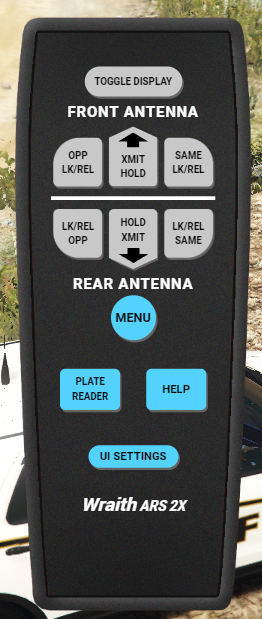
- Note: You must be in a police vehicle to open the radar remote!
- Now click on
Toggle Displayto show the radar on your screen.
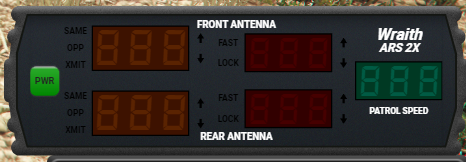
-
You can click and drag the radar on your screen to position it where you would like it and click on
UI Settingson the remote to configure the size. -
Click the green
PWR(Power) button on the radar to turn it on. -
Remote Configuration:
-
The top 3 buttons in a row are for your front antenna, the lower 3 are for your rear antenna. 'Opp' means the opposite lane of traffic area will be targeted (angle). 'Same' means directly upfront or behind the patrol vehicle. 'XMT/HOLD' means Transmit and Hold; this function simply turns off your radar.
When you first enable the radar the suggested configuration is as follows:
- Disable XMT/Hold on both the front and rear.
- Set 'Opp' for front.
- Set 'Same' for rear.
-
Vehicle speeds will be shown on the radar screen.
-
Next we should configure the fast lock, This will lock plates and speed over a specified speed.
- In the remote click
MENUand findFAS Locand make sure itsOn. Select the up or down arrow to change the option. - Now find
FAS Spdin the settings, and use the up or down arrow to change the set speed to lock. It's suggested to set it to 75 or 80.